Territory management helps the Sales team manage region-wise sales and marketing campaigns.
Dynamics 365/CRM provides default functionality for creating and assigning territories to CRM users.
You can create a new territory and assign it to a Manager and an account from the Dynamics CRM backend. However, managing territories within CRM requires performing many manual tasks.
In addition, the default territory management functionality in Dynamics CRM has several limitations. To overcome these limitations, a Dynamics 365 map integration—AppJetty MappyField 365—provides an overview of all your sales territories, allowing you to easily create and manage them geographically from the map.
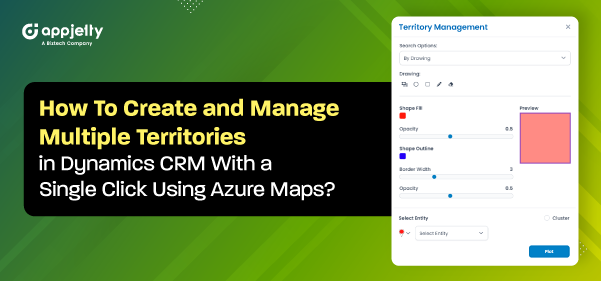
With “MappyField 365,” you can create and manage territories and assign them to managers and accounts directly from the map. Additionally, you can merge and expand territories based on different “Search Options.”
Veronica, a general manager in a pharmaceutical company, manages medicine sales. Her responsibility is to deliver medicines to registered pharma/medical stores according to their orders. She needs to create and assign region-specific territories to the appropriate sales teams to handle sales and revenue opportunities.
The “Territory Management” feature of MappyField 365 offers four options for searching and managing territories from the map: By Region, By Drawing, By Territory, and By File.
this blog, we will explain how to add and manage territories using the Drawing Tools by visualizing data directly on a map.
Step 1: Navigate to MappyField 365
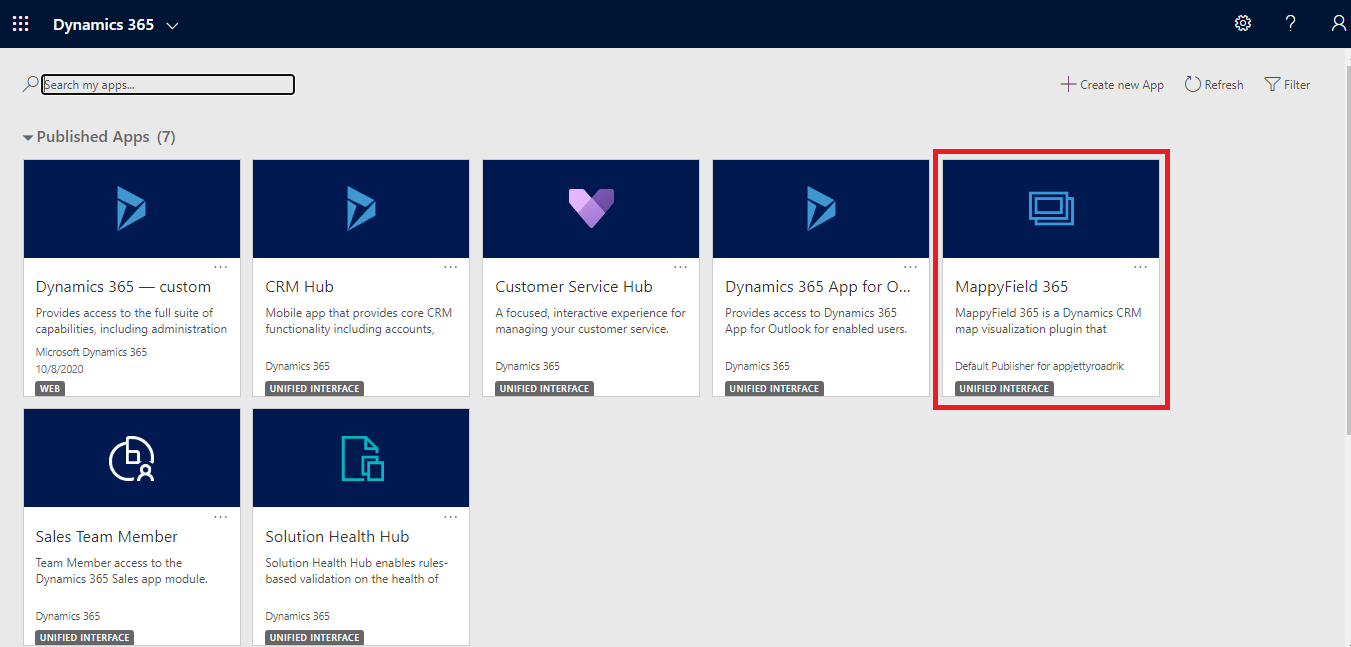
Select ‘MappyField 365’ from the Dynamics 365 dashboard or app list.
Step 2: Navigate to Territory Management
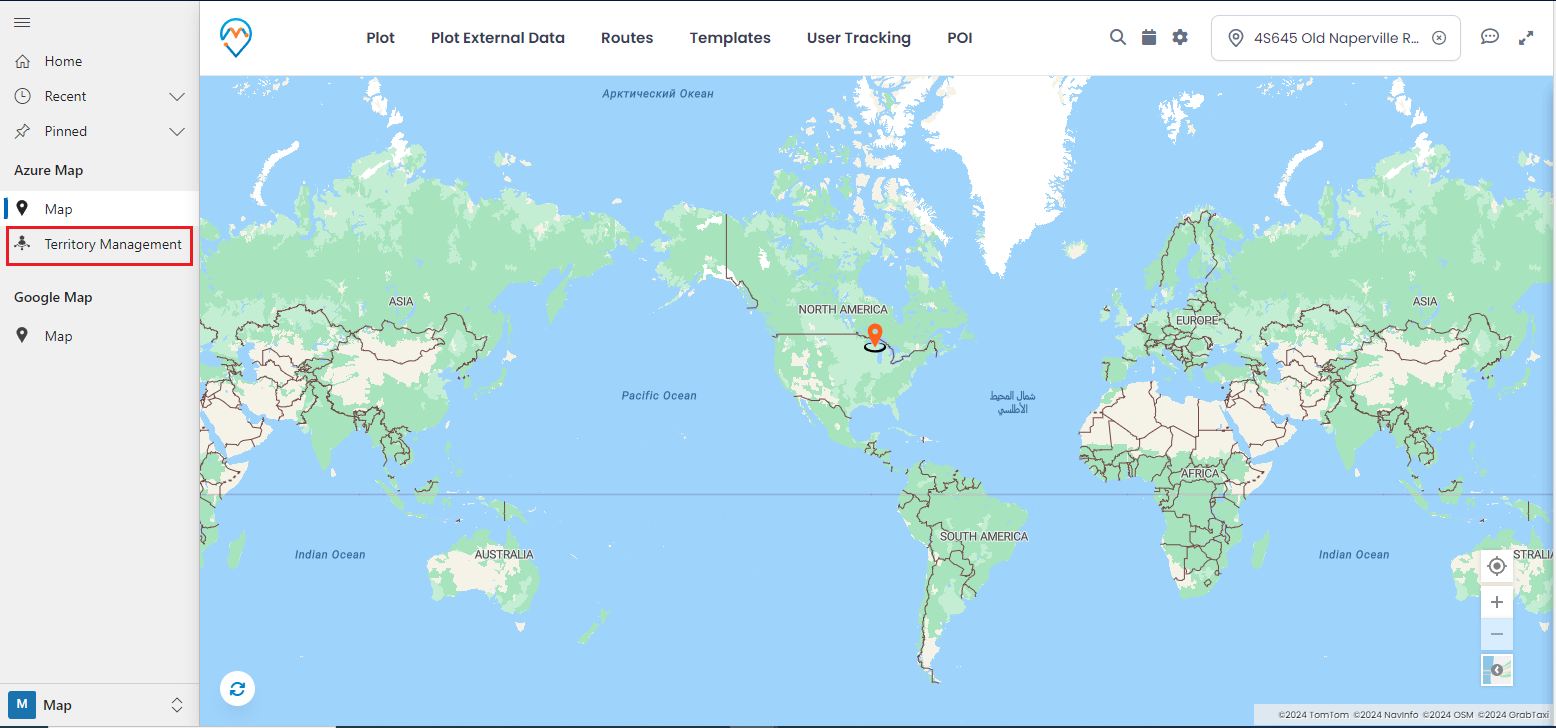
fter clicking on ‘Territory Management,’ you will be navigated to the map of Territory Management. From the MappyField 365 menu, by clicking on ‘Territory Management,’ you will find the Search Options to create and manage Territories by assigning a Sales Manager (CRM user).
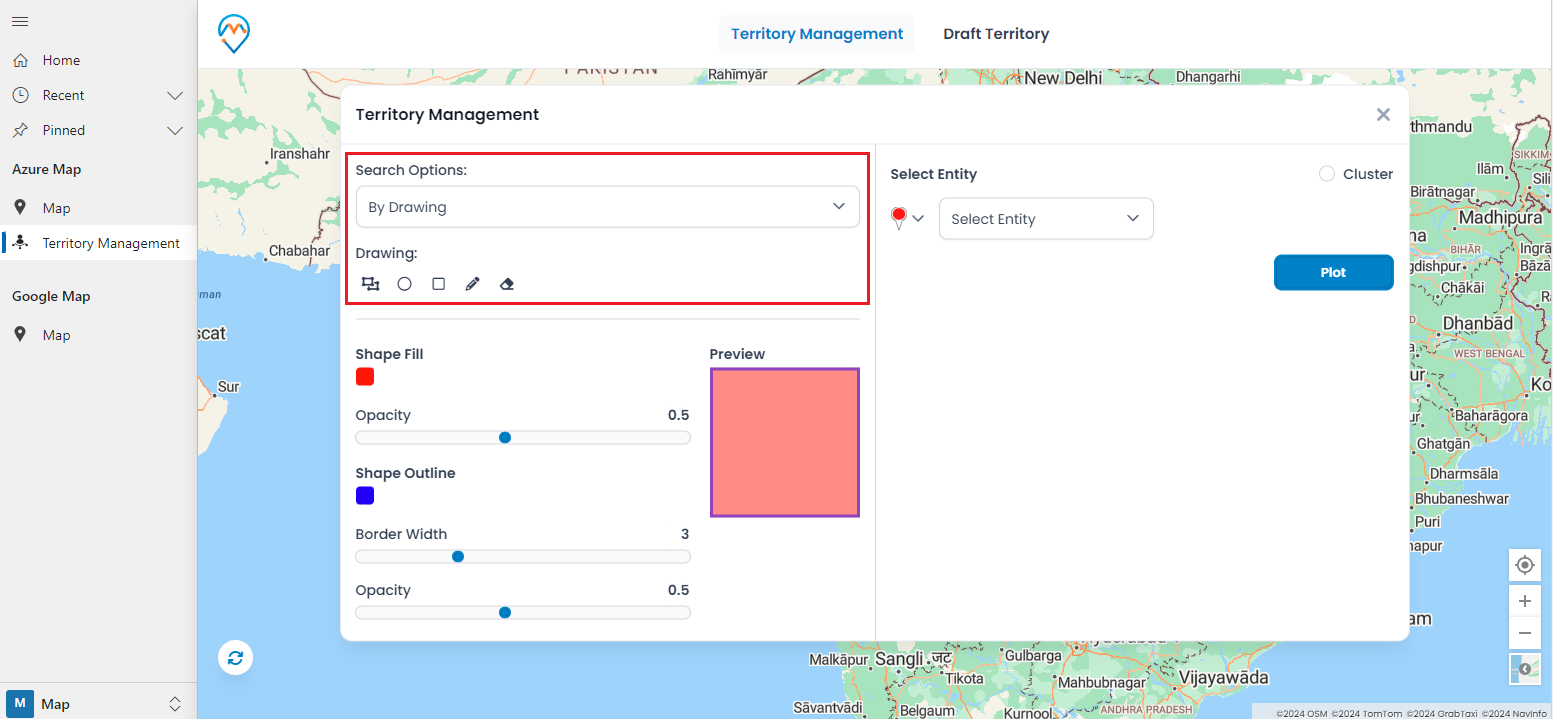
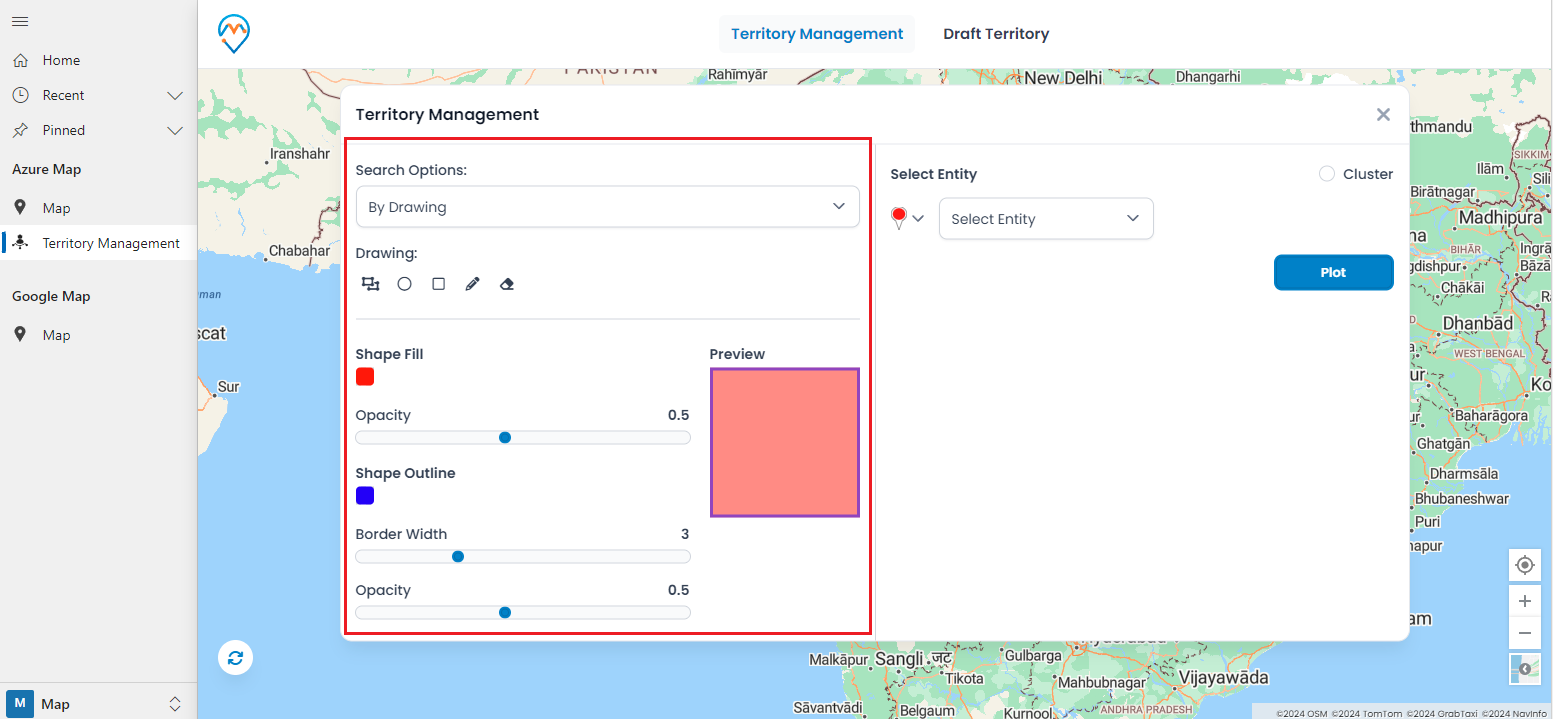
Click on the “By Drawing” search option, and you will get different “Shapes” to draw on the map, along with other editing options such as Edit, Delete, Shape Fill Color, Shape Outline Color (border color), Border Width, and Color Opacity.
Step 3: Draw area on Map
Select the shape you want to draw on the map to create a territory. The ‘Polygon’ shape is drawn on the map.
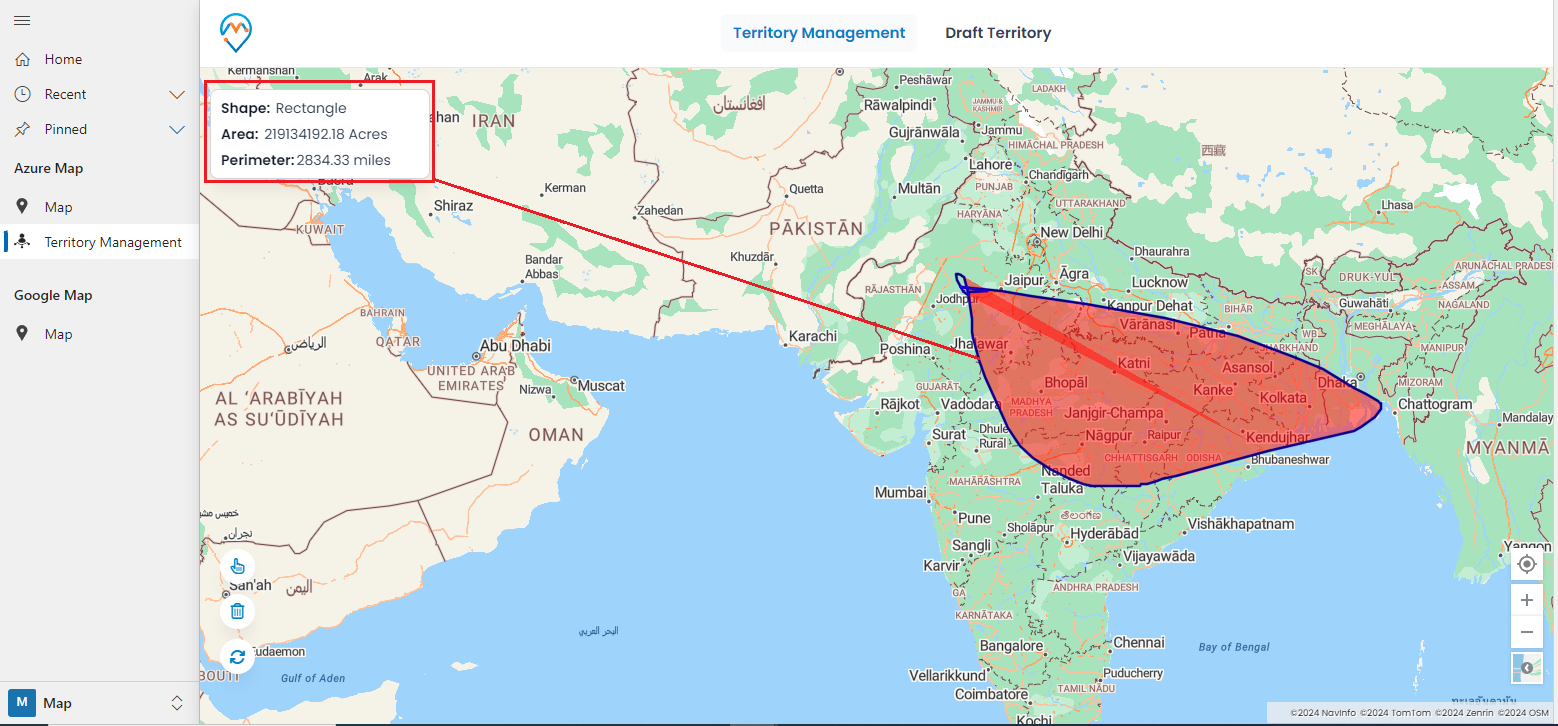
Similarly, using different shapes, you can draw the shape in the area to be added to the Sales Territories by assigning the Sales Manager/Sales Team.
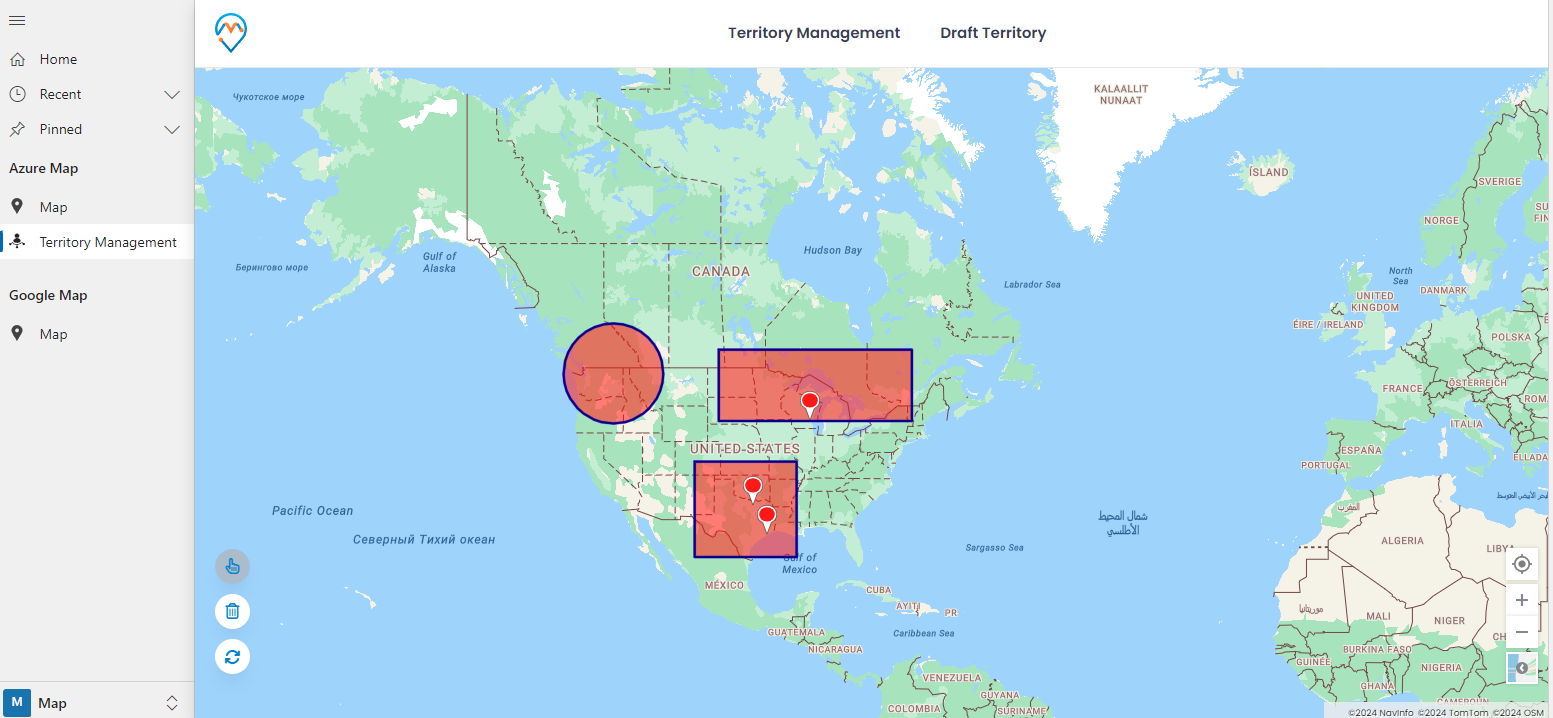
Four different shapes are drawn on the map of the specific area to define the territory. To select the drawn shapes, click on the element selection (hand icon) and then click on the shapes.
Step 4: Create Multiple Territories
To create a territory, follow these steps:
1. Select the shapes using the element selection (hand icon).
2. Click on the shape for the area where you want to create or manage the territory. The color of the shape will change once you click on it.
3. Right-click on the selected shape, and you will see the “Create New Territory” option.
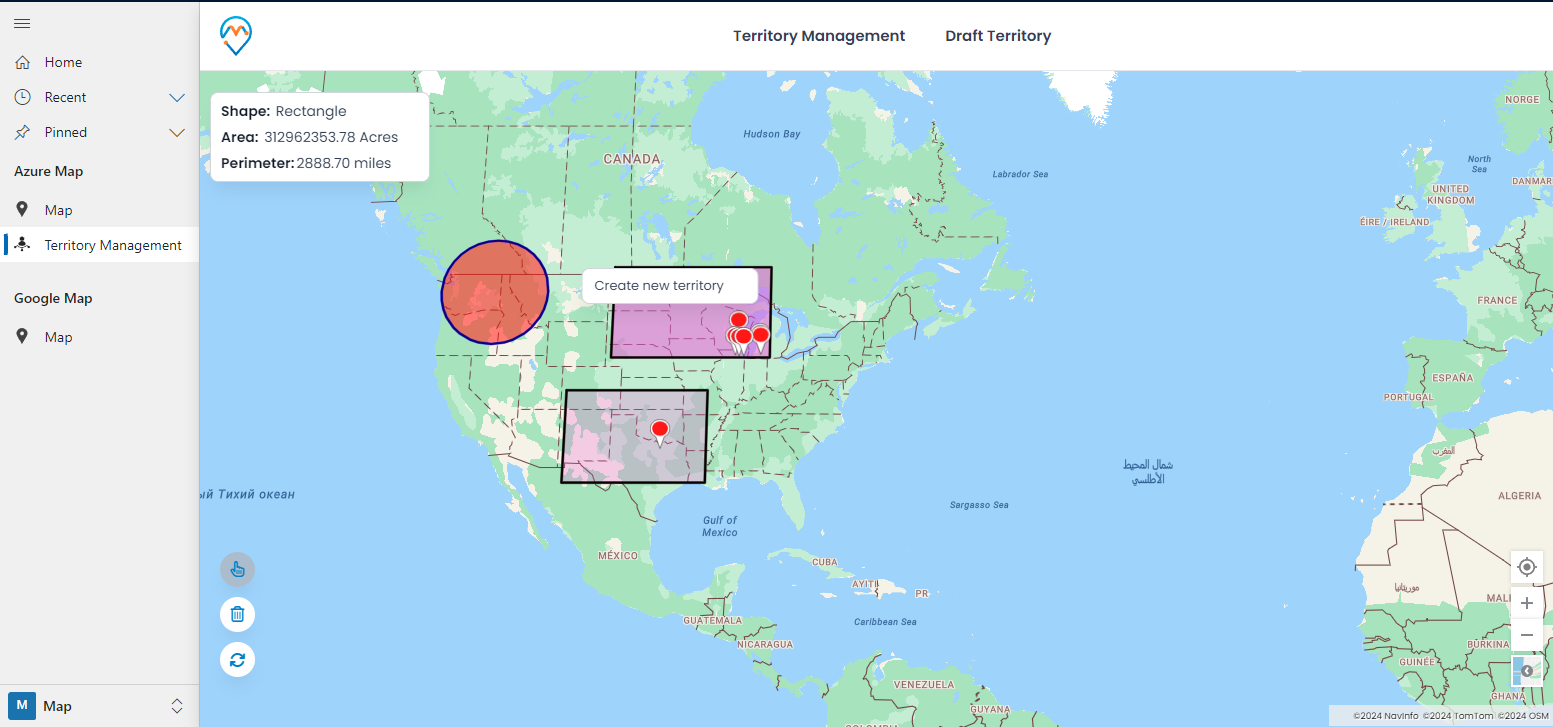
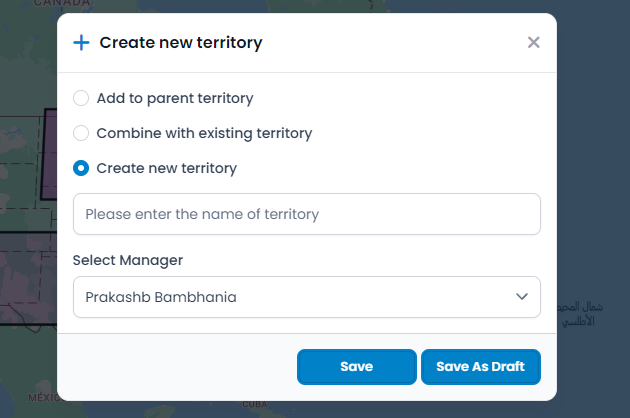
In this case, the General Manager (Veronica) wants to manage multiple territories based on the drawn shapes. She has added two drawn shapes to a single territory named “West-South Region” and will create a new territory for the remaining two shapes.
The remaining two shapes are selected to create a territory for another Sales Manager (or Sales Team).
Step 5: Search entity records by selecting Territory/Territories You can plot the records by selecting the Territory in the search option, so the entity records will be plotted only within that territory.
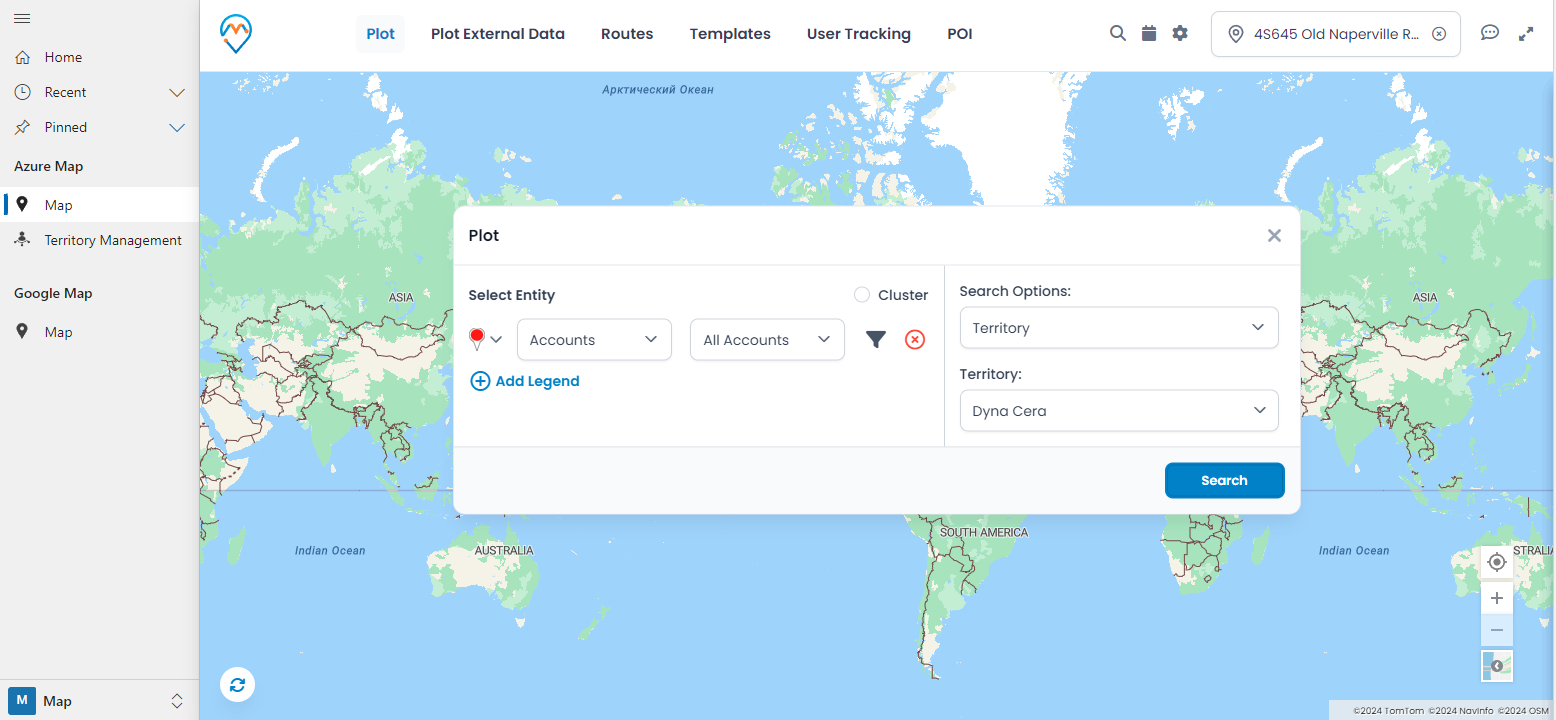
The general manager, Veronica, can plot the required entity records on the map by selecting the created territories and track the activities directly on the map.
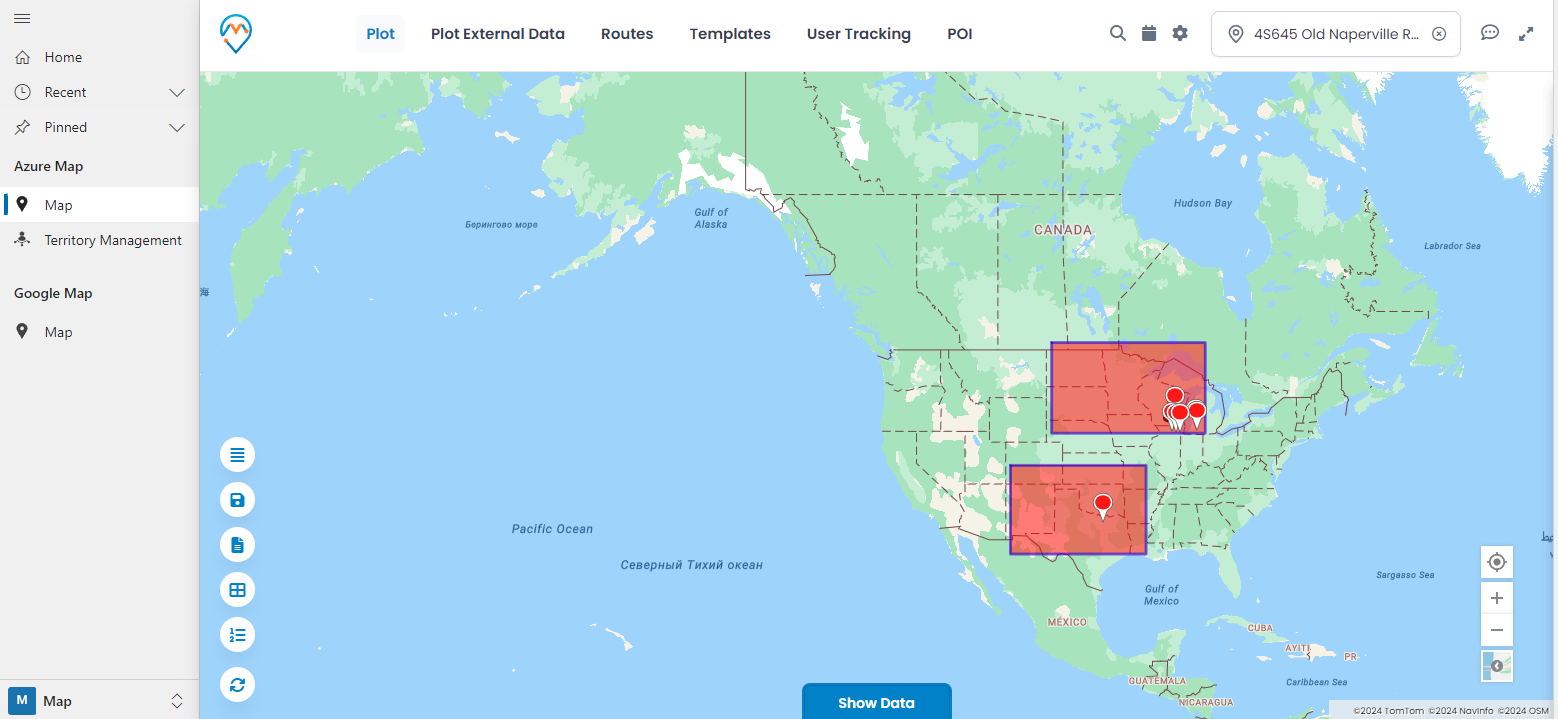
You can plot CRM records on the map using AppJetty MappyField 365, a Microsoft Dynamics CRM app for map integration. With its user-friendly and advanced features, you can manage teams and CRM records directly on the map.
All product and company names are trademarks™, registered® or copyright© trademarks of their respective holders. Use of them does not imply any affiliation with or endorsement by them.